Member Portal
Purpose
The Member Portal is a self-service web portal where cooperative members can view their accounts, apply for loans, manage savings, track investments, submit welfare applications, and download statements — all without needing to visit the cooperative office or call a staff member.
The same features are available on the QoopOne Member Mobile App.
Who Can Access
- Active cooperative members (with their own login credentials)
Note
Members access the portal with their own email and password, separate from staff logins.
How to Open This Page
Members navigate to the cooperative's member portal URL in their browser (provided by the cooperative).
On mobile: Download the QoopOne Member App from the Google Play Store or Apple App Store.
Portal Dashboard
After logging in, members see their personal dashboard:
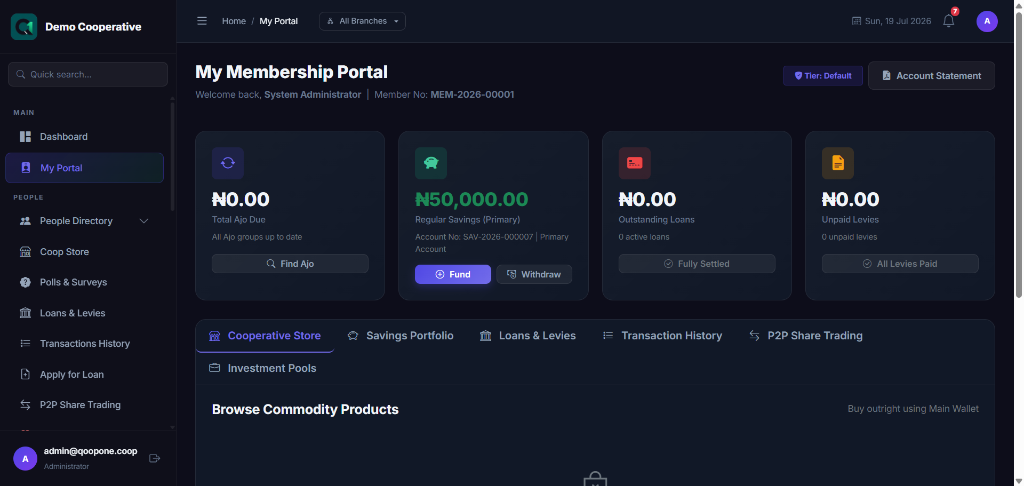
The dashboard shows:
- Total Savings Balance — Combined balance across all savings accounts
- Total Loans Outstanding — Remaining loan balance
- Share Capital — Total shares purchased
- Quick Actions — Deposit, Withdraw, Apply for Loan, etc.
- Recent Transactions — Latest activity
Savings Accounts
Viewing Savings
Members can view all their savings accounts with: - Account name and number - Current balance - Account type (Regular, Target, Fixed Deposit) - Interest earned - Transaction history
Opening a New Savings Account
- Click Savings → Open New Account.
- Select the savings plan (product) offered by the cooperative.
- Enter an account name.
- Enter the initial deposit amount.
- Click Open Account.
Topping Up Target Savings
- Click Savings → Target Savings Account.
- Click Top Up.
- Select the source Regular Savings account.
- Enter the amount.
- Click Transfer.
Withdrawing (Early Liquidation)
For Regular Savings: 1. Click Savings → Withdraw. 2. Select the account. 3. Enter the amount, destination bank, and account number. 4. Click Submit Request.
For Fixed Deposits and Target Savings (early): 1. The portal shows the liquidation mode: Full Liquidation or Partial Withdrawal. 2. A penalty preview is displayed showing the exact deduction and net payout. 3. Member confirms and submits.
Warning
Early withdrawal from Fixed Deposits or Target Savings may carry penalties. The portal always shows the full breakdown before the member confirms.
Loans
Applying for a Loan
- Click Loans → Apply for Loan.
- Select the loan product.
- Enter the amount and repayment period.
- Describe the purpose.
- Click Submit Application.
The application goes to the cooperative's loan officers for review.
Tracking a Loan
Members can see: - Loan status (Pending, Active, Overdue, Closed) - Outstanding balance - Next payment date - Full repayment schedule (amortization table)
Investment Pools
Browsing Campaigns
- Click Investments in the portal menu.
- Browse available investment campaigns.
- View campaign details (amount, ROI, maturity date).
- Click Invest Now to participate.
Investment Certificate
Members who have invested can download their investment certificate:
- Go to Investments → My Investments.
- Click View Certificate (📜) next to any investment.
- The certificate opens in a new tab. Click Print Certificate to save or print it.
Ajo Groups
Joining an Ajo Group
- Click Ajo in the portal.
- Browse available Ajo groups.
- Click Request to Join.
- A staff member will confirm the membership.
Viewing Ajo Status
Members can see: - Their contribution schedule - Payment history - When their payout cycle is scheduled
Welfare Applications
Submitting a Welfare Claim
- Click Welfare in the portal.
- Click Apply for Grant.
- Select the welfare category (Medical Emergency, Bereavement, etc.).
- Enter the amount requested (within the allowed maximum for your tier).
- Describe the situation.
- Upload supporting documents (hospital invoice, etc.).
- Click Submit Claim.
Tracking a Claim
Members can see the status of submitted claims (Pending, Approved, Rejected).
Levies
Members can view their: - Levy outstanding balance - Payment history - Monthly levy schedule
Notifications
Members receive notifications in the portal for: - Loan approval/rejection - Savings interest credited - Levy payment reminders - Welfare claim decisions - Ajo payout scheduled
Downloading Statements
- Go to Savings → Account Details.
- Click Download Statement.
- Choose the date range.
- Click Export PDF or Export Excel.
Tips
Tip
Encourage members to set up their portal account immediately after joining. This reduces workload on staff for basic enquiries (balance checks, statement requests).
Tip
Members can print their investment certificate directly from the portal — no need to visit the office.
Frequently Asked Questions
Q: A member forgot their portal password. How do they reset it?
A: They click Forgot Password on the member portal login page and follow the email reset link.
Q: Can a member change their bank account details through the portal?
A: For security, bank account changes must be done by a staff member after identity verification.
Q: The member says they cannot see their savings account on the portal.
A: Confirm that the account is Active in the system. Closed or dormant accounts may not display.