Settings
Purpose
The Settings module is where administrators configure the cooperative's core information, branding, product rules, payment options, and system preferences. Think of Settings as the control panel of QoopOne — you typically set it up once at the beginning and revisit it only when something changes.
Who Can Access
| Role | Access Level |
|---|---|
| Administrator | Full access to all settings |
How to Open This Page
Sidebar → Admin → Settings
Settings Overview
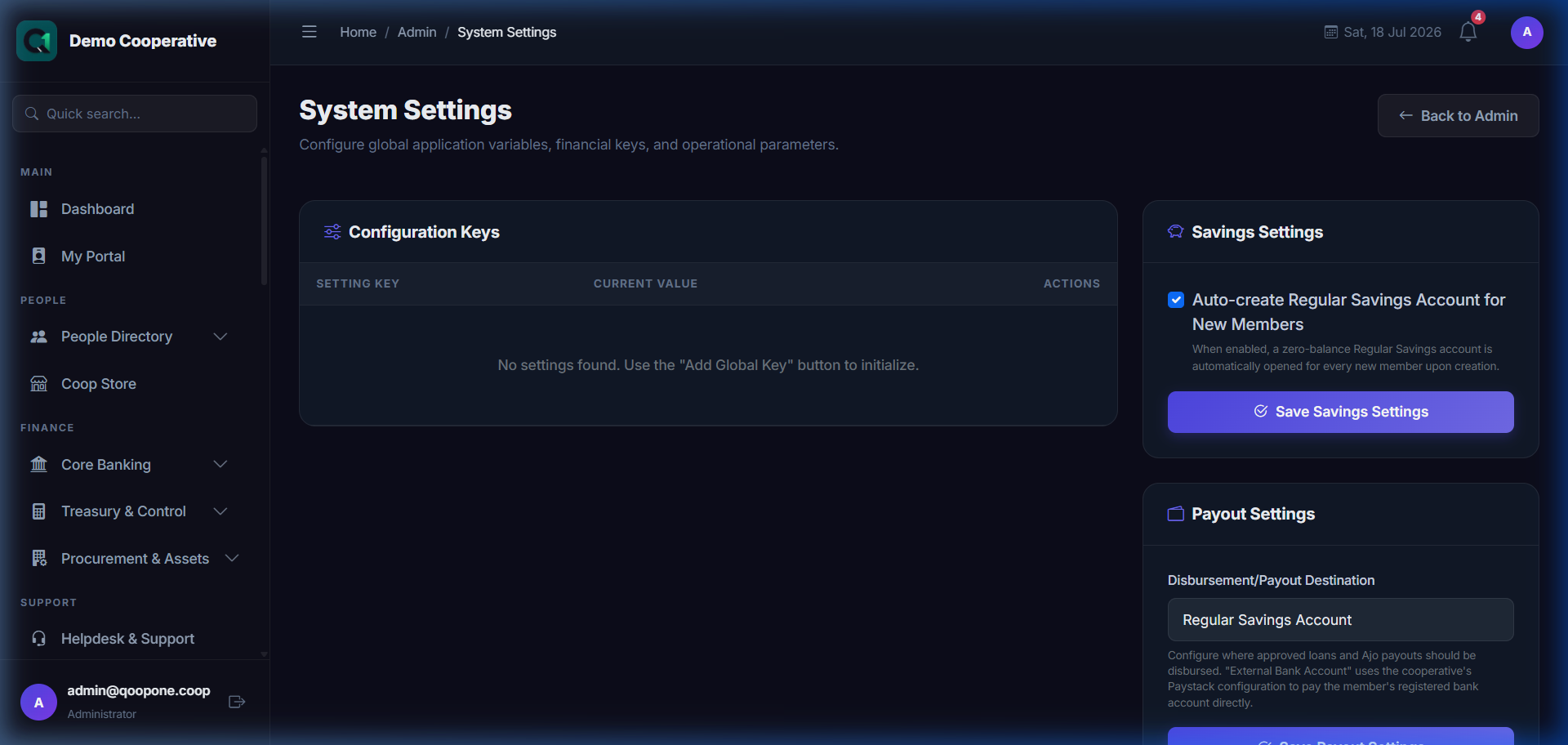
👉 HOW TO CONFIGURE GENERAL COOPERATIVE SETTINGS (Vivid Guide)
- Configure Cooperative Profile: Go to System Settings -> Administration, click "Edit Profile" to edit Cooperative Name, Phone, and Address.
- Setup Interest & Rules: Inside the settings page, select the specific module settings (Savings, Loans, Share Capital) to adjust rates, payment intervals, and fees.
Settings are organised into the following sections:
General Settings
| Setting | Description | Example |
|---|---|---|
| Cooperative Name | Official name of the cooperative | First Unity Cooperative Society Ltd |
| Cooperative Code | Short login code used by staff and members | FUCO01 |
| Registration Number | CAC or government registration number | RC123456 |
| Address | Physical address of the cooperative headquarters | 15 Unity Road, Lagos |
| Phone Number | Main contact number | +23412345678 |
| Email Address | Main contact email | info@firstunitycoop.com |
| Website | Cooperative's website | www.firstunitycoop.com |
| Financial Year Start | Which month the cooperative's financial year begins | January |
| Default Currency | Currency for all transactions | NGN (₦) |
Branding Settings
Sidebar → Admin → Settings → Branding
| Setting | Description |
|---|---|
| Logo | Upload the cooperative's logo (shown in the top sidebar, reports, certificates) |
| Primary Colour | The main brand colour used in the interface |
| Favicon | Small icon shown in the browser tab |
| Email Signature | Text or logo shown at the bottom of all outgoing emails |
Savings Products
Sidebar → Admin → Savings Products
Configure the savings products that members can enrol in. See individual savings modules for more details on fields.
| Column | Description |
|---|---|
| Product Name | Name of the savings product |
| Product Type | Regular, Target, Fixed Deposit, Recurring |
| Interest Rate | Annual interest rate |
| Minimum Amount | Minimum balance or deposit required |
| Tenure | Fixed term in days (for Fixed Deposit) |
| Status | Active or Inactive |
Membership Tiers
Sidebar → Admin → Membership Tiers
Tiers define different levels of membership with different privileges or fee structures (e.g. Bronze, Silver, Gold, Platinum).
| Field | Description |
|---|---|
| Tier Name | E.g. Bronze, Silver, Gold |
| Description | What benefits this tier provides |
| Minimum Share Capital | Minimum shares required for this tier |
| Monthly Savings Minimum | Minimum savings contribution for this tier |
Departments
Sidebar → Admin → Departments
Organisational departments within the cooperative (e.g. Finance, Loans, Admin, IT). Used for budgeting and internal reports.
Communications
Sidebar → Admin → Communications
Configure how QoopOne sends messages to members:
| Setting | Description |
|---|---|
| SMS Provider | The SMS gateway used (e.g. Termii, Twilio) |
| SMS Sender ID | The name displayed on outgoing SMS (e.g. FIRSTCOOP) |
| Email Provider | The email service used (SMTP settings) |
| From Email | The email address that sends automated emails |
| Enable Notifications | Toggle automatic notifications on/off |
Payment Gateway
Sidebar → Admin → Payment Gateway
Configure online payment integration (e.g. Paystack) for members paying via the portal.
| Setting | Description |
|---|---|
| Provider | Payment processor (e.g. Paystack) |
| Public Key | The provider's public API key |
| Secret Key | The provider's secret API key (keep this secure) |
| Test Mode | Toggle between test environment and live environment |
Keep API Keys Secret
Never share your payment gateway secret key. Anyone with this key could access your account.
Compliance Settings
Sidebar → Admin → Compliance
Configure AML and KYC thresholds and policies:
| Setting | Description |
|---|---|
| KYC Required | Whether KYC must be verified before members access services |
| Transaction Limit (Unverified) | Maximum transaction amount allowed for members without verified KYC |
| AML Alert Threshold | Transaction amount above which an AML alert is triggered |
Tips
Complete Settings Before Going Live
Ensure all general settings, branding, and savings products are configured before registering the first member.
Changing Financial Year Start
Do not change the financial year start date after transactions have been posted. Contact QoopOne support before making this change.